



Ordering Instructions (Applicable to New Postgraduate Students)
📚 Textbook Categories [↑]
Textbooks are generally divided into "Printbook" and "E-book"
Print textbooks can be further divided into Printbook and Pbundle (see the red box)
E-book can be further divided into E-book and Ebundle (see the red box)
Book categories include "Coursebook (CB)" and "Referencebook (RB)" (see the blue box)
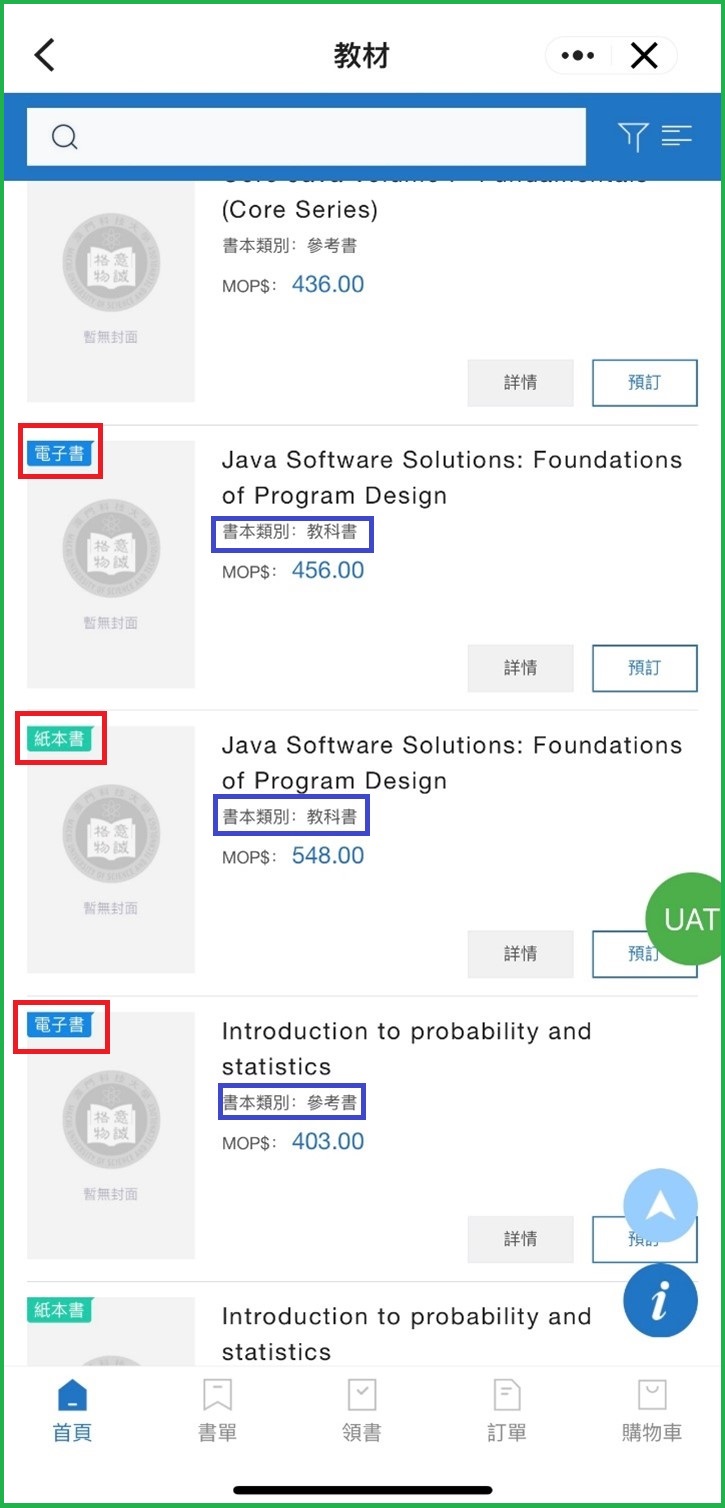
Figure 1: Textbook Category Diagram
⏱️ Important Note: Most English print textbooks (Printbook or Pbundle) have corresponding e-textbook (E-books or Ebundle). Students may choose to purchase either one and do not need to buy both.
In the automatically generated "Pending Payment" orders for postgraduate freshmen's coursebooks (CB), the system prioritizes print books (or print bundles). If a textbook is available only as an e-book (or e-bundle), then the "Pending Payment" order will include only the e-textbook. If students wish to order the corresponding e-textbooks in the "Pending Payment" order or other reference books (RB), they may also view the booklist via https://lib.must.edu.mo/page/id-16261.html?locale=en_US or the "Booklist" in "MUSTbooks" on WeMust StudentAPP to obtain more textbook information.
💰 Wallet Top-up Method [↑]
📱 Step 1: Install WeMust Student APP
First, install the WeMust StudentAPP. Please click the app icon to enter.
Note: When using the app for the first time, an on-screen guide will be provided. After completing it, the login page will appear. Please log in using the account and password you have noted (do not use the username and password from the online registration system). For first-time users, the system will prompt you to set a payment password. Please click "Go to Settings" to proceed to the password setup.
💳 Step 2: Top Up Your Wallet
On the Wallet page, tap "Balance" ► "Top Up" to enter the top-up page. After entering the top-up page, please enter the amount you wish to top up, then select a payment method.
Supported Payment Methods: WeChat Pay, Alipay, Banco de Desenvolvimento de Macau (BDM), Bank of China Macau Mobile Banking, MPay, Visa, and Mastercard.
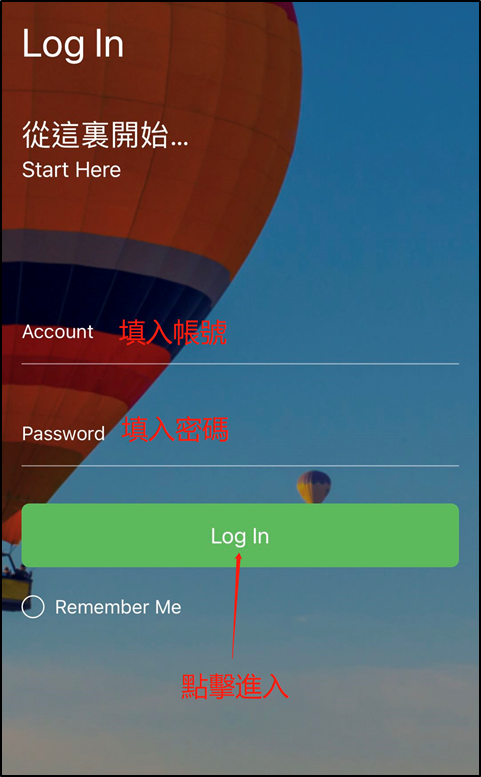
Figure 2: Login Page
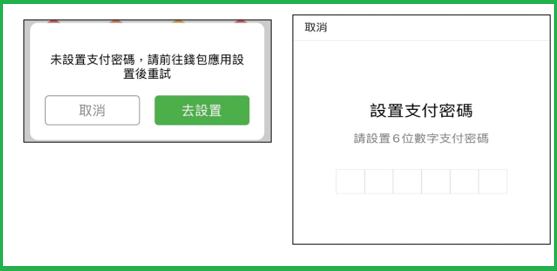
Figure 3: Payment Password Setup
Top-up Process Illustration:
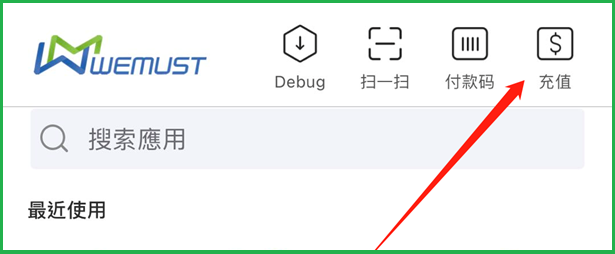
Figure 4: Top-up Button Location at Top Right of Homepage
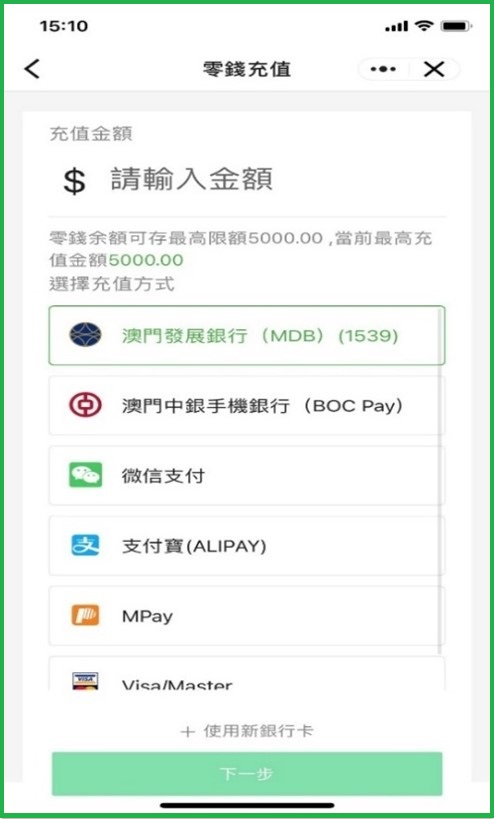
Figure 5: Top-up Page - Enter Amount
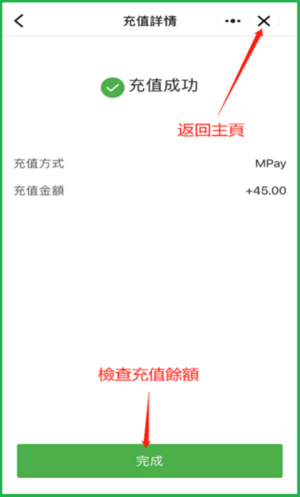
Figure 6: Top-up Successful Page
⚠️ Important Reminder: Before ordering textbooks, please top up your WeMust Wallet first. During the textbook ordering period, the maximum top-up limit for the wallet is MOP 3,000. How to top up the WeMust Wallet: After logging in, click "Top Up" at the top right of the homepage.
🛒 Textbook Ordering Steps [↑]
Ordering Process:
Open https://lib.must.edu.mo/page/id-16261.html?locale=en_US or go to "MUSTbooks" on WeMust StudentAPP, tap "Booklist";
After opening the booklist, all textbooks for the major will be displayed, including "Coursebook (CB)" and "Referencebook (RB)";
If you wish to order the corresponding e-textbooks in the "Pending Payment" order or other reference books (RB), you can copy the book number (ISBN) here, and then paste it into the search bar in the WeMust "MUSTbooks" application;
After confirming your order, click Order;
Click Cart;
After confirming that the textbook information is correct, click Submit Order.
Ordering Steps Illustration:
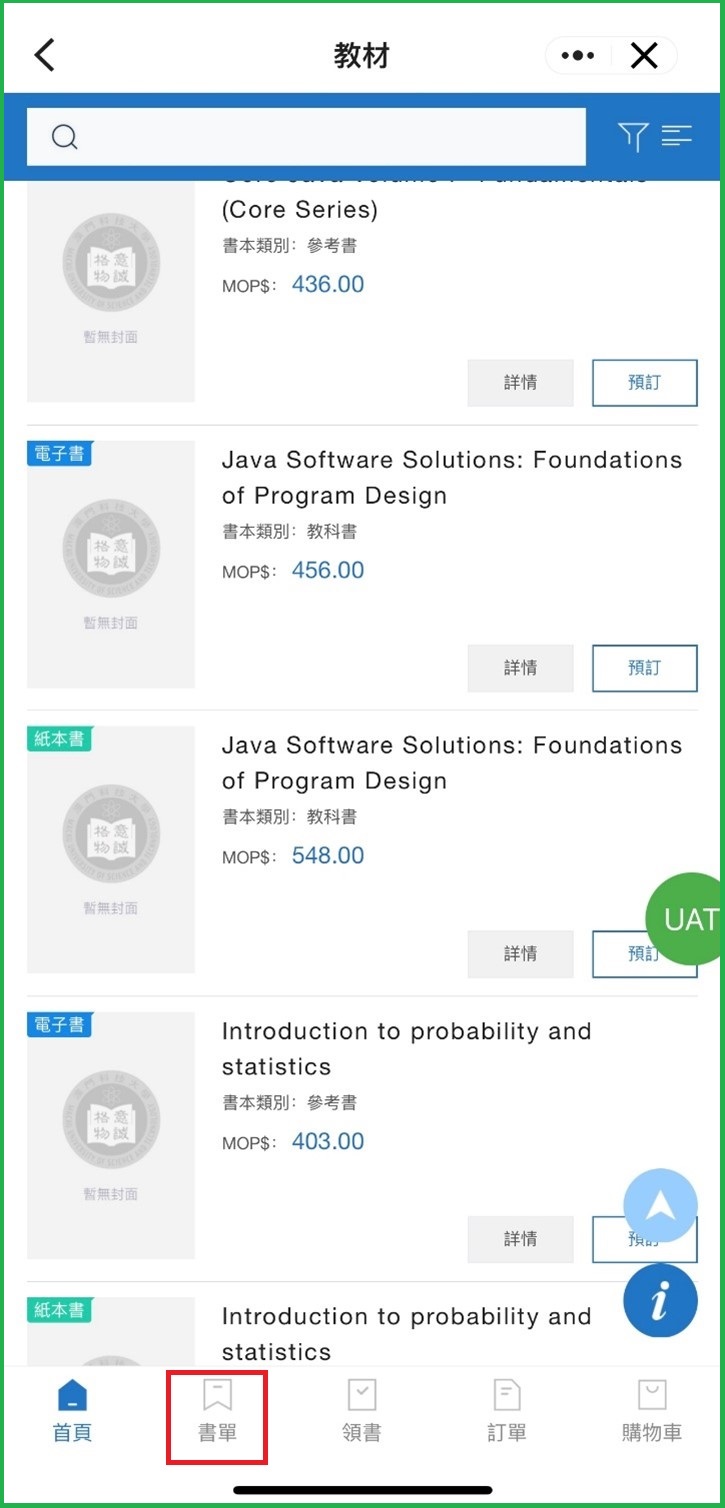
Figure 7: Open Booklist Page

Figure 8: Copy ISBN and Search in Search Bar
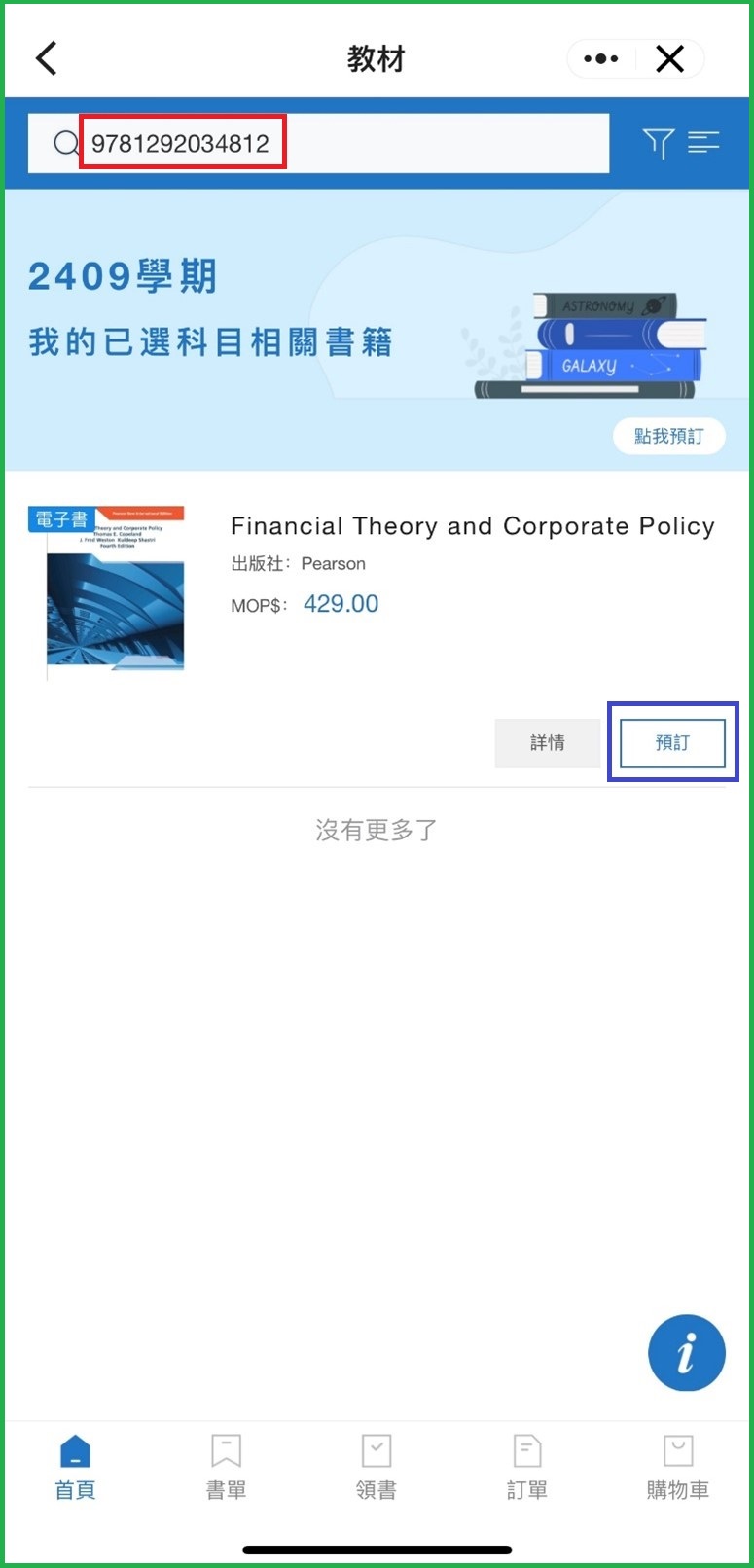
Figure 9: Click Order After Confirmation
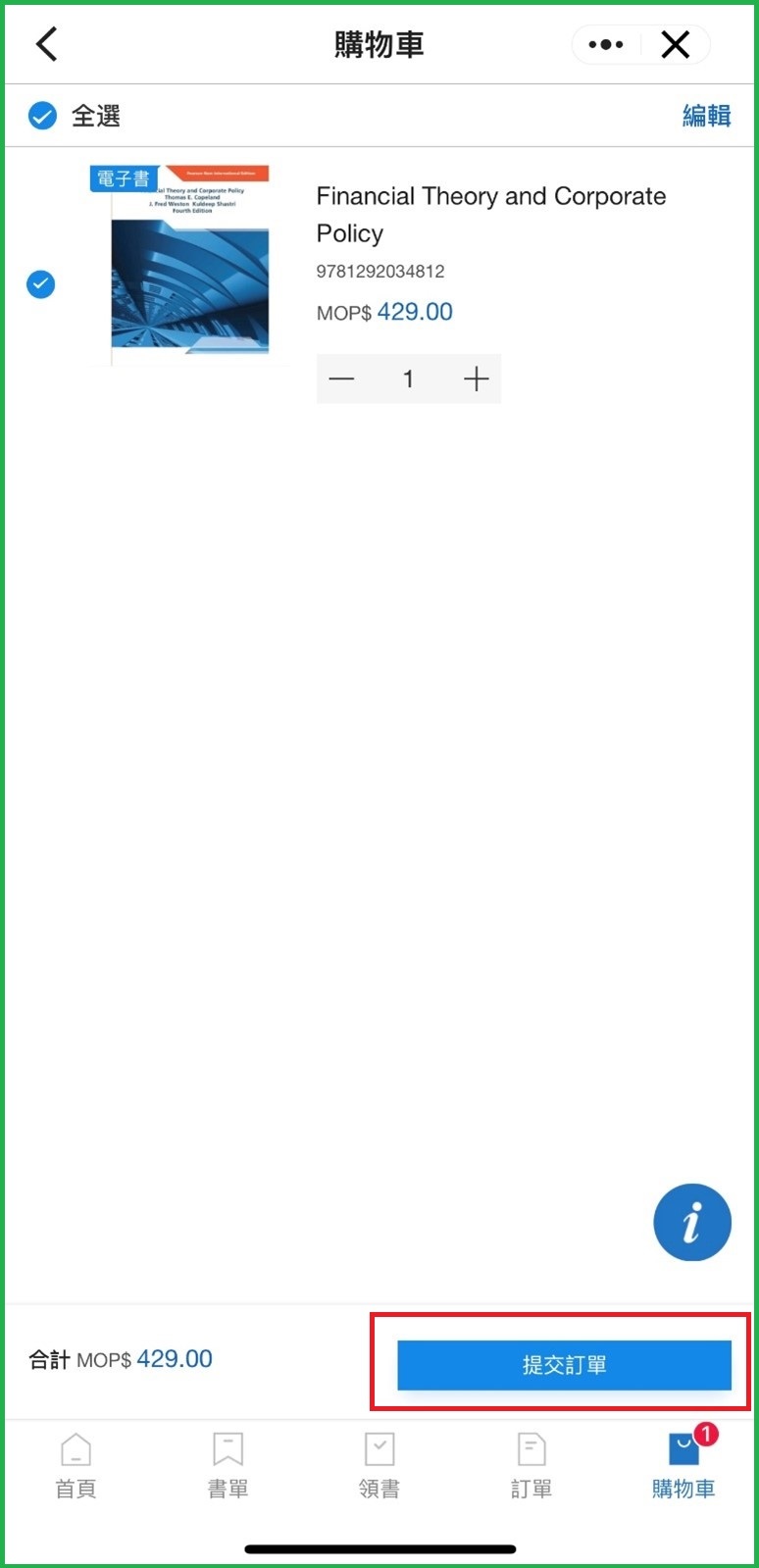
Figure 10: Click Cart and Submit Order

